Entradas

Mostrando las entradas etiquetadas como CWAP

AP in sniffer mode in Cisco 9800

Imagen
 AP in sniffer mode in Cisco 9800 When a Cisco AP joins a WLC it can work in several modes, one of those being the "sniffer". In this mode, the AP will be passively listening to wireless traffic which can be sent to a device that can capture and analyze this traffic using an application like Wireshark. Setting the AP in Sniffer mode Converting the AP to Sniffer mode On our Cisco 9800 WLC we have to navigate to Configuration->Wireless->Access Points From the list of APs we will select the Access Point we want to be in Sniffer Mode, then in the " General " tab, we will select " Sniffer " and " Update and apply to device ". The AP will then reboot and re-join the WLC after a few minutes Setting parameters in Sniffer mode Once the AP has re-joined, we can verify its current mode. We will also notice that no channel is configured to be "sniffed"  For configuring what channels are going to be sniffed, we have to individually go to each ...
Understanding 802.11k

Imagen
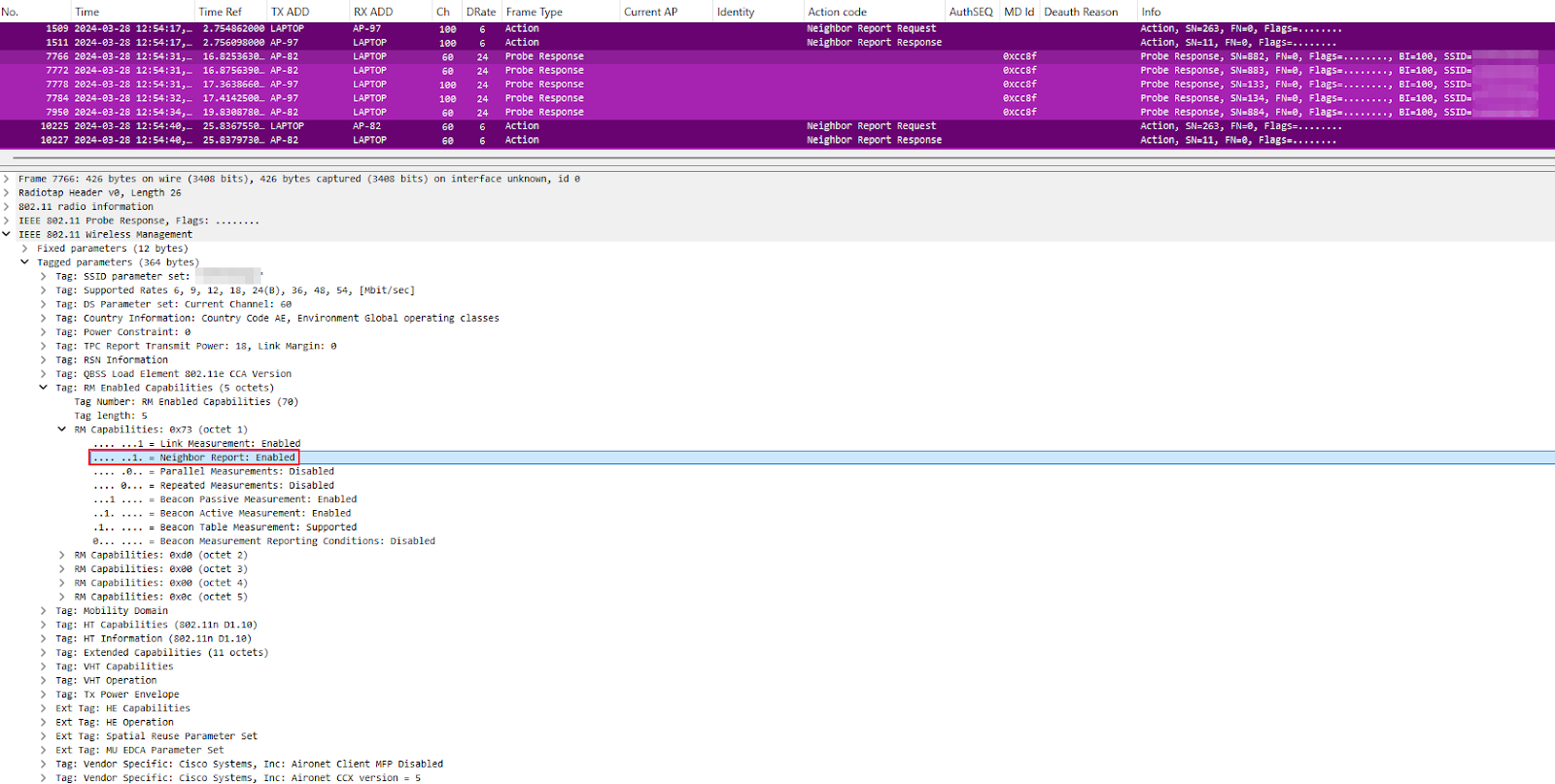
Understanding 802.11k What is 802.11k 802.11k is an amendment to the 802.11 standard that helps wireless networks  in managing their radio resources . The clients, instead of making blind decisions about when and where to roam, with 802.11k have a mechanism for the network to guide them, resulting in a much smoother and more efficient roaming process. Key Features of 802.11k: The neighbor report The "neighbor report" is the way the network can guide the clients about where to roam. Find below  how it works: • APs that support 802.11k will inform of its capability in the beacon or probe response frame. In the following image we can see how is advertised in a probe response: • A client associated to that SSID will send an action frame "Neighbor report request" • The AP will reply with a "neighbor report response" and will provide the client with a list of neighboring APs that are good candidates for roaming.  This report includes information such as the BS...

Cisco 9800 Roam Type 802.11i Slow vs 802.11i Fast vs 802.11r

Imagen
Hello, in this entry I initially though about explaining and comparing 802.11i roaming versus 802.1X with FT roaming, but then I though it may be more interesting to follow the process as seen from the Cisco 9800 WLC and DNAC, that is where I configured the packet captures, so I´ve been re-arranging the post several times. Also, we can check when the cisco 9800 WLC will show the roam type as 802.11i Slow, 802.11i Fast or 802.11r.  Capturing Packets with Cisco DNA Center (Catalyst Center) This are the steps followed to get the captures on this post: 1.- From any tab on DNA Center, click the search button and type the MAC address you want to capture 2, 3.- Click on it and go to Client 360 4.- Once in Client 360, click on "Intelligent Capture" 5.- In the Intelligent Capture page for the selected device, click on "Run Packet Capture"  6.- A new tab will open, and there you can choose to do a Full Packet Capture or an Onboarding Packet Capture, program the capture or run...

Wi-Fi: Multi Channel OTA captures with Kali Linux

Imagen
  Some time ago, in the 38th session of "Tesos" with Ferney Muñoz I shared some tips on how to perform multi channel OTA captures with a Kali Linux VM. Before I just used a Live Kali Linux USB, and from there I was able to set any wireless NIC in monitor mode, but with the security restrictions of Windows, I had to use this method some time after. Although some processes have changed a bit since then, I hope it can help :)

Wi-Fi: Análisis con Wireshark

Imagen
 Some time ago, in the 21st session of "Tesos" with Ferney Muñoz I shared some tips on how to analyze 802.11 captures, creating buttons, filters, colums etc (in spanish) Although some processes have changed a bit since then, I hope it can help :)